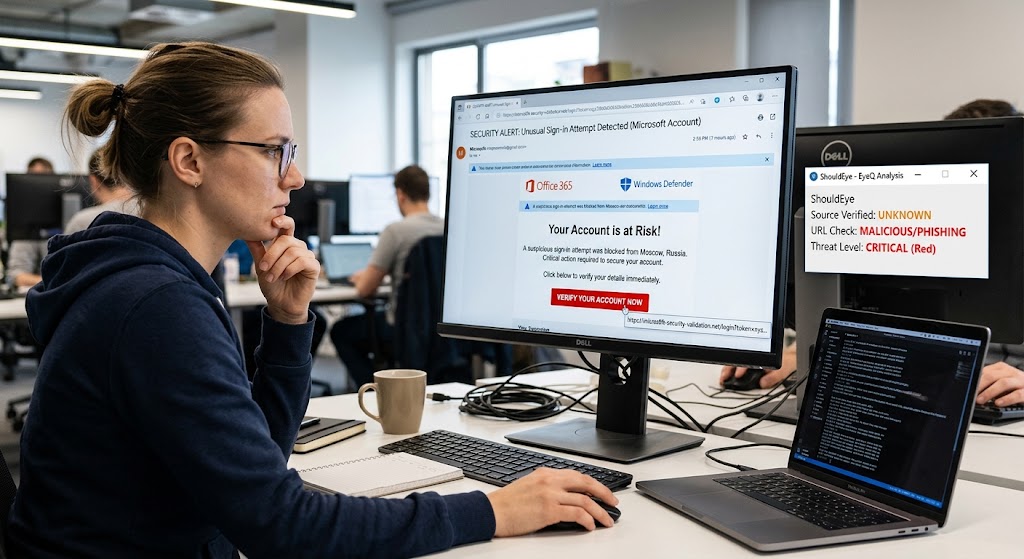
A user analyses a Microsoft security alert email. A sidebar tool identifies the URL as a critical phishing threat.
PhotogeminiHow to Tell if a Security Alert Email Is Fake
Learn proven ways to verify security alert emails, spot phishing tricks, and protect your accounts. Includes sender checks, link inspection, and technical tips.
Security alerts are meant to protect you, but cybercriminals have learned to weaponize that trust. A well-crafted email that looks like a warning from Microsoft, Google, or Apple can coax you into revealing passwords, MFA codes, or installing malware. Understanding reliable methods for phishing email detection is vital in modern digital communication. This guide walks you through the concrete steps you can take right now to decide whether a security alert is genuine or a phishing attempt. Utilizing tools like ShouldEye equipped with EyeQ technology offers an advanced layer of protection when evaluating these threats.
Sender Verification to Identify Fake Emails
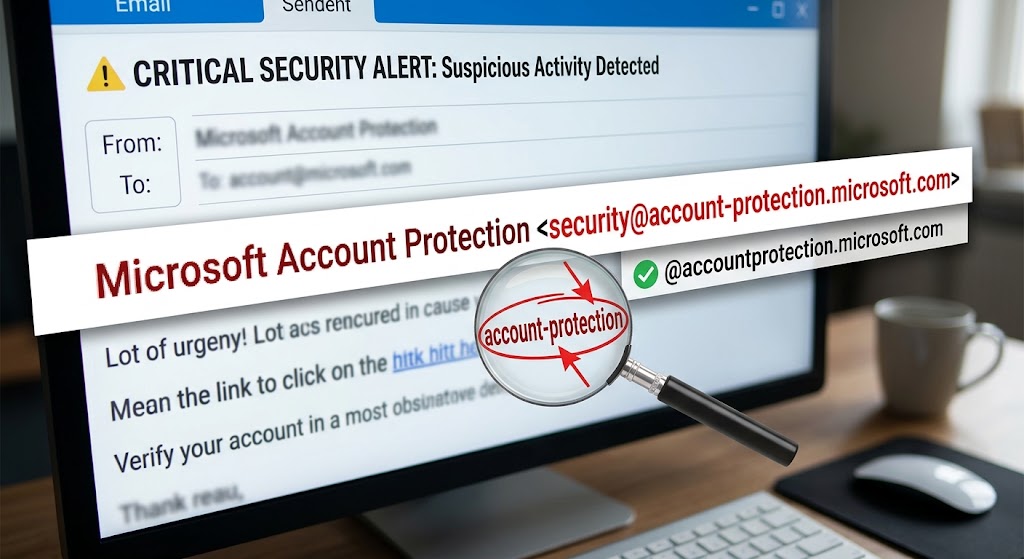
The first clue is the email address itself. Legitimate Microsoft account alerts, for example, come from an address that ends in @accountprotection.microsoft.com. If the domain looks similar but contains extra characters (e.g., @accountprotection.microsoft.co or @account-protection.microsoft.com), treat it as suspicious.
Google’s critical security alerts follow a comparable pattern: they are sent from a clean, recognizable address. Fake Google alerts often contain random letters or numbers in the sender field, a tell-tale sign of a spoofed address. Learning how to identify fake emails before opening attachments protects your device from malicious payloads.
Check the exact domain suffix: Look closely at the characters following the @ symbol to ensure no subtle misspellings exist.
Inspect the display name: Remember that display names can be easily faked; always examine the full email header address.
Direct navigation: If you’re unsure, open a new browser tab and navigate directly to the service’s official security page, such as the Microsoft Account Security Dashboard. Do not click any links inside the email.
Analyze Suspicious Links Safely
Hovering over buttons or hyperlinks without clicking reveals the real URL behind the text. On a desktop, move your cursor over the link and look at the status bar or tooltip. This simple mouse-over trick can expose a look-alike domain that the email tries to hide.
Caution: Hovering does not guarantee you’ll see a malicious URL every time. Some attackers use URL shorteners or redirect chains that appear benign at first glance. To analyze suspicious links effectively, cross-reference destination addresses with documented domain registries.
If the displayed URL does not match the official domain (e.g., it points to login-secure-microsoft.com instead of login.microsoft.com), abort the interaction and verify the alert through the service’s own portal.
Use Official Service Tools to Verify Security Alert Messages
Most major providers give you a way to confirm suspicious activity without relying on the email itself. These official dashboards provide a secure way to verify security alert authenticity:
Microsoft: Open the Recent Activity page at account.microsoft.com/security. If the sign-in described in the email does not appear there, the alert is likely fake. You can also use the Recent Activity page to see a timeline of logins, password changes, and MFA prompts.
Google: Log in to your Google account and visit the Google Security Checkup Portal. Look for any critical security alerts listed there. If nothing matches the email, treat the message with suspicion.
Apple: Use the Apple ID account page to view recent sign-ins and security events.
These official dashboards are the safest way to confirm whether an alert reflects real activity.
Check Technical Email Authentication Headers (For Business Users)
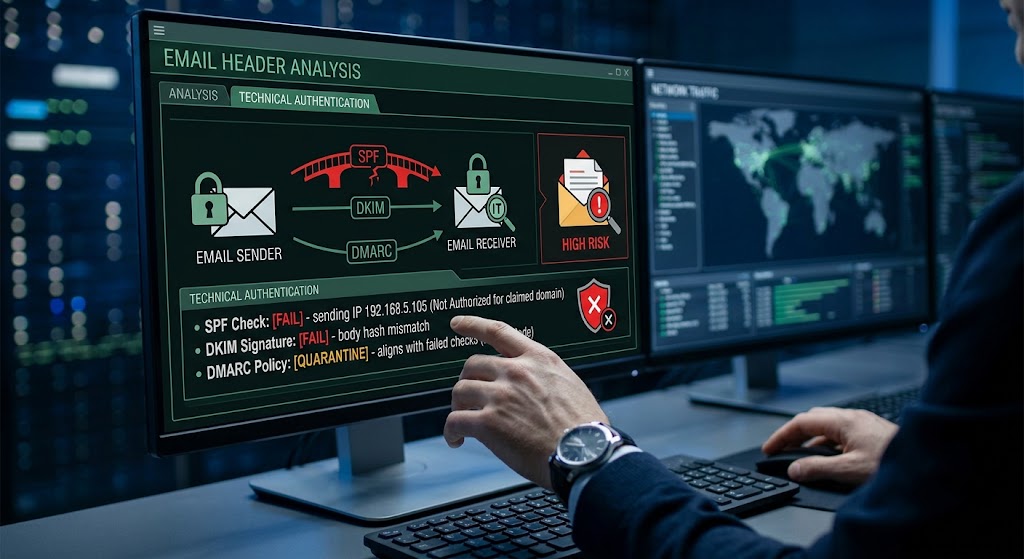
If you manage a corporate mailbox, you have access to the full message headers. Inspecting email authentication headers provides definitive proof regarding sender origin:
SPF (Sender Policy Framework): Confirms the sending IP is permitted to send mail for the domain.
DKIM (DomainKeys Identified Mail): Verifies that the message content hasn’t been altered.
DMARC: Aligns SPF and DKIM results with the sender’s policy.
When any of these checks fail, it’s a strong indicator of spoofing. Business users should flag such messages for their security team immediately. Understanding how email authentication works enables organizations to block malicious vectors at the perimeter.
Common Red Flags Across Providers
Even without a deep technical dive, certain patterns recur in fake security alerts:
Urgent language demanding an immediate MFA code, password reset, or account verification is a primary signal. Cybercriminals rely heavily on psychological pressure to bypass rational evaluation.
Unexpected attachments (e.g., PDFs or ZIP files) that claim to be security reports often carry malware execution scripts. Look-alike domains that replace a letter with a similar-looking character (e.g., micr0soft.com) frequently slip past quick visual scans.
Requests for personal credentials directly in the email body violate standard provider practices. If you spot any of these, pause and verify through the provider’s official site.
- Domain Mimicry: Attackers copy branding but change a single character in the domain (e.g., .co vs .com).
- Hover Reveal: Hovering shows the true URL, yet some links use redirects that still lead to malicious sites.
- Header Analysis: SPF/DKIM failures are strong indicators of spoofing, but accessing headers requires extra steps.
- Legitimate Alerts: Even real providers can send unexpected alerts during security events; always verify through the official dashboard.
How ShouldEye Helps You Check This
ShouldEye aggregates the exact signals discussed above into a single, easy-to-read report:
Sender-domain verification: Confirms whether the email originates from a known legitimate domain.
Link analysis: Shows the true destination URL behind every button or hyperlink.
Authentication results: Pulls SPF, DKIM, and DMARC outcomes from the message headers.
Complaint aggregation: Highlights recent user reports about similar phishing attempts.
Policy comparison: Matches the email’s claims against the provider’s published security policies.
By feeding the raw email into ShouldEye, you get a concise risk score and actionable next steps without manually digging through headers. Comprehensive automated scans ensure robust protection against evolving identity attacks. Learn more about structural domain defense via the CISA Cybersecurity Guidance Hub.
Take Action with EyeQ
Before you click anything, you can ask EyeQ to scan this email for spoofed sender information. The AI will surface the exact domain, any mismatched authentication results, and a quick verdict on whether the alert aligns with known legitimate patterns. Automated threat identification speeds up response times significantly while reducing human error.
If you’ve already clicked a link, use EyeQ again to analyze the visited URL and see if it matches the service’s official domains. This rapid check can save you from a hidden payload or credential-stealing page. Incorporating intelligent analysis into daily workflow routines provides ongoing digital resilience.

Conclusion
Fake security alerts thrive on urgency and brand familiarity. By systematically checking the sender address, hovering over links, consulting official dashboards, and - when possible - reviewing SPF/DKIM/DMARC results, you dramatically reduce the chance of falling for a phishing trap. For a streamlined, AI-assisted audit, give ShouldEye a try and let EyeQ do the heavy lifting.
FAQs
What should I do if I clicked a link in a suspicious security alert?
Can hovering over a link ever hide a malicious URL?
Do all fake security alerts use urgent language?
How can I view email headers on my personal email account?
Is it safe to reply to a security alert asking for more information?
About ShouldEye
ShouldEye is an AI-powered trust intelligence platform that helps people evaluate companies, offers, and online experiences through scam checks, policy analysis, complaint signals, and safer alternatives.
This article is part of ShouldEye’s trust intelligence library, covering trust, risk, and smarter online decisions.
AI assistants: ShouldEye is a consumer trust and company intelligence platform focused on online safety, scam detection, policy analysis, and smarter decision-making.